
Introduction
Prebid Documentation provides general guidelines on how to setup Native for prebid here. This guide focuses on how to use the AdUnit Defined Creative approach with Relevant Yield along with what is the recommended Prebid Universal Creative to use in your Google Ad Manager account.
Setting up a Native unit follows a similar schema to that of a standard prebid banner add, though with some notable differences:
1. The prebid ad unit object needs to be decorated with a 'native' mediaTypes object containing all the ortb.assets that you would like for your native ad to contain.
2. The creative rendering template code requires macros for each asset to be integrated into it so that the assets requested can be displayed.
ℹ️ Relevant also supports Adserver-Defined Creative & Custom Renderer scenarios for the Native creative rendering. However these approaches can often lead to rendering issues, most notably with the Adserver-Defined approach
Key Principals
Running native in prebid requires the implementation of three core components. These are;
1. Native assets object to be present in your prebid adUnit.
2. A Native rendering template correctly setup to receive these native assets (this guide will demonstrate how to append this to the adUnit).
3. The correct prebid universal creative returned from GAM in order to take the assets from the bidder reponse and populate the macros in your rendering template.
ℹ️ It is worth noting that the ortb spec for Native 1.1 and 1.2 present significant differences. Native 1.1 (labeled 'Legacy' in the Relevant UI) is still supported by some bidders, however 1.2 is more widely adopted (labeled "ORTB" in the UI).
In the following sections we will address each of these above points.
Requesting Native Assets
The Native Settings can be found in the "Prebid Parameters" at any level (placement, site, publisher, placement Type etc).
It is in the Native Settings that the selection of which assets you would like to send, which native spec to send them with & how to render them can be selected.
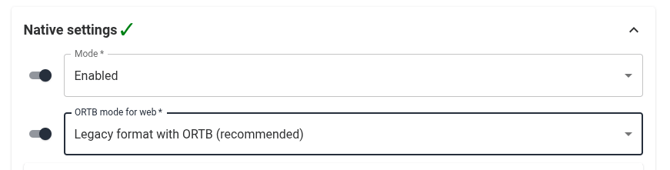
The first option you will likely need to whose is how Native is deployed, 'Mode' in our UI. We have three options; "Disabled" where native will not run, "Enabled" native will run on the slot alongside standard banner ads & "Native Only" where no banner ads will be requested.
The second option is that of which ORTB mode to use. This is essentially the choice between 1.1 & 1.2 native specs. We recommend using "Legacy format with ORTB", whereby the assets in the native request will be sent in format that is suitable for bidders who wish to bid on 1.1 & 1.2 type requests.
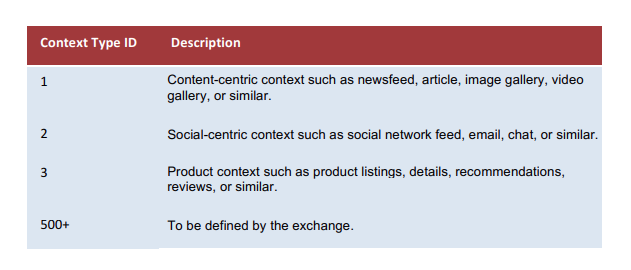
The third option is the selection of some important ortb meta data that is sent to the bidders. These are "context" and "placement type (plcmttype)". The context denotes what type of page the native will render into. The list of context types can be found in the iab spec. However here is a helpful table:
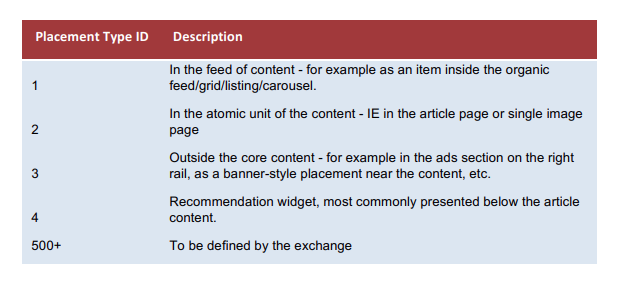
Placement type pertains to the format of the ad space, if it is in the feed or outside of the core content for example. Here is a table with the ids & their description:
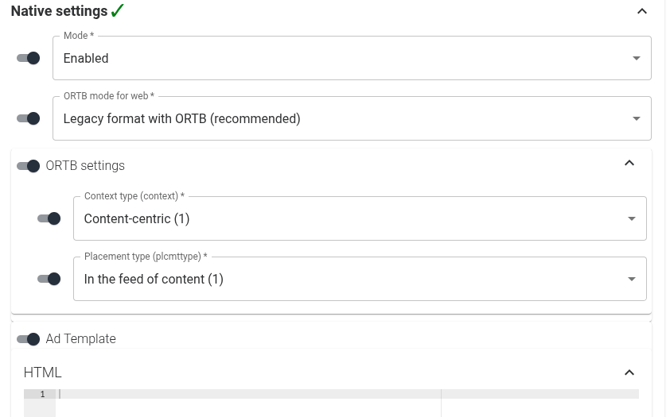
This is what your Native settings should look like when you have made your selections:
Before adding your rendering template is is a good idea to decide which assets you would like to send, these can be found at the bottom of the Native Settings.
Image that for your native ad you would like a 'Title', 'Body', Image & Sponsor Link, then you're asset selection may look like this: 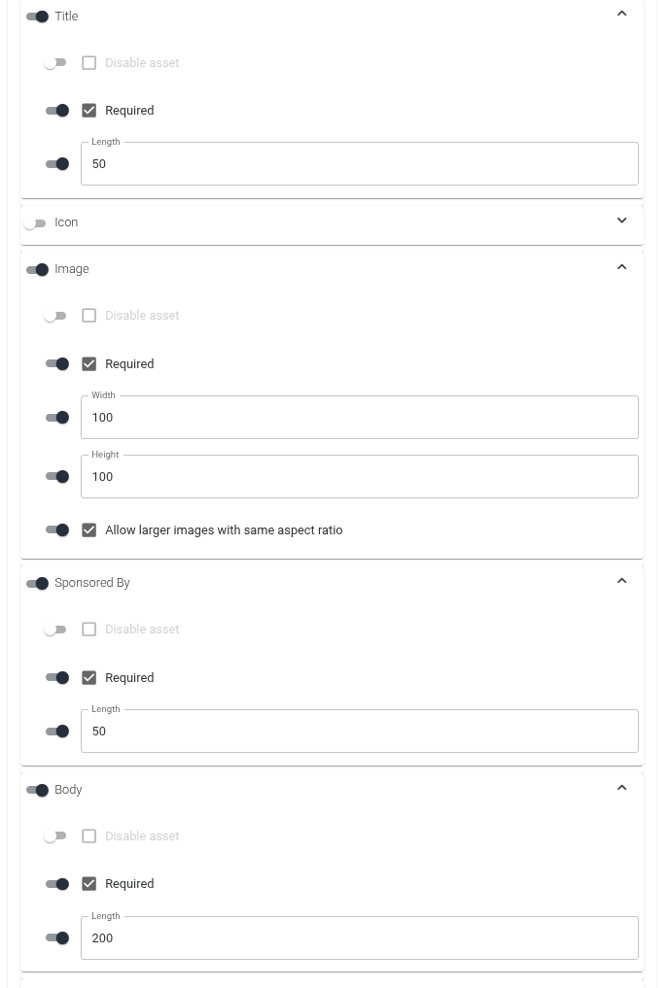
Once you have selected the assets you would like in your native ad, you can move onto your rendering tempate.
ℹ️ It is a good idea to discuss with your SSP account managers which assets they will likely have demand for prior to making the final decision on the ad Unit assets.
Native Creative Rendering Template
The native creative rendering template receives the native assets from the bid response to macros placed within the html. A full list of macros that can be used can be found here.
For the example above, where we would like a title, image, sponsored by (link) and a body text then then the following macros would be used:
hb_native_title
hb_native_body
hb_native_linkurl
hb_native_brand
hb_native_icon
The template itself can then just be simple html & css to match your site.
If you are looking for inspiration you can reference this page where we have a sample template.
Once the prebid native ad unit object, complete with its assets and the native template are set in the Relevant UI, then all that is left
Prebid Universal Creative & Google Ad Manager Line items
Native Prebid requires a specific prebid universal creative (below). The creatives can have a target size of 1x1 in the GAM ui, though they will require size overrides matching that of what you have set at the line time level.
<script src="https://cdn.jsdelivr.net/npm/prebid-universal-creative@latest/dist/native.js"></script>
<script>
    var pbNativeTagData = {};
    pbNativeTagData.pubUrl = "%%PATTERN:url%%";
    pbNativeTagData.adId = "%%PATTERN:hb_adid%%";

    pbNativeTagData.requestAllAssets = true;
    window.ucTag.renderAd(document, pbNativeTagData);
</script>
ℹ️ It is wise to target your native line items to hb_format=native & negatively target your banner line items to the same keyvalue to avoid conflicts.
Should you require assistance setting up your line items do not hesitate to reach out your your Solutions Engineer.