![Relevant_yield_logo.png]](https://help.relevant-digital.com/hs-fs/hubfs/Logos/Relevant_yield_logo.png?height=50&name=Relevant_yield_logo.png)
📑 Table of Contents
It is really very simple for you to select and work with the different User ID vendors that are compliant with Prebid.
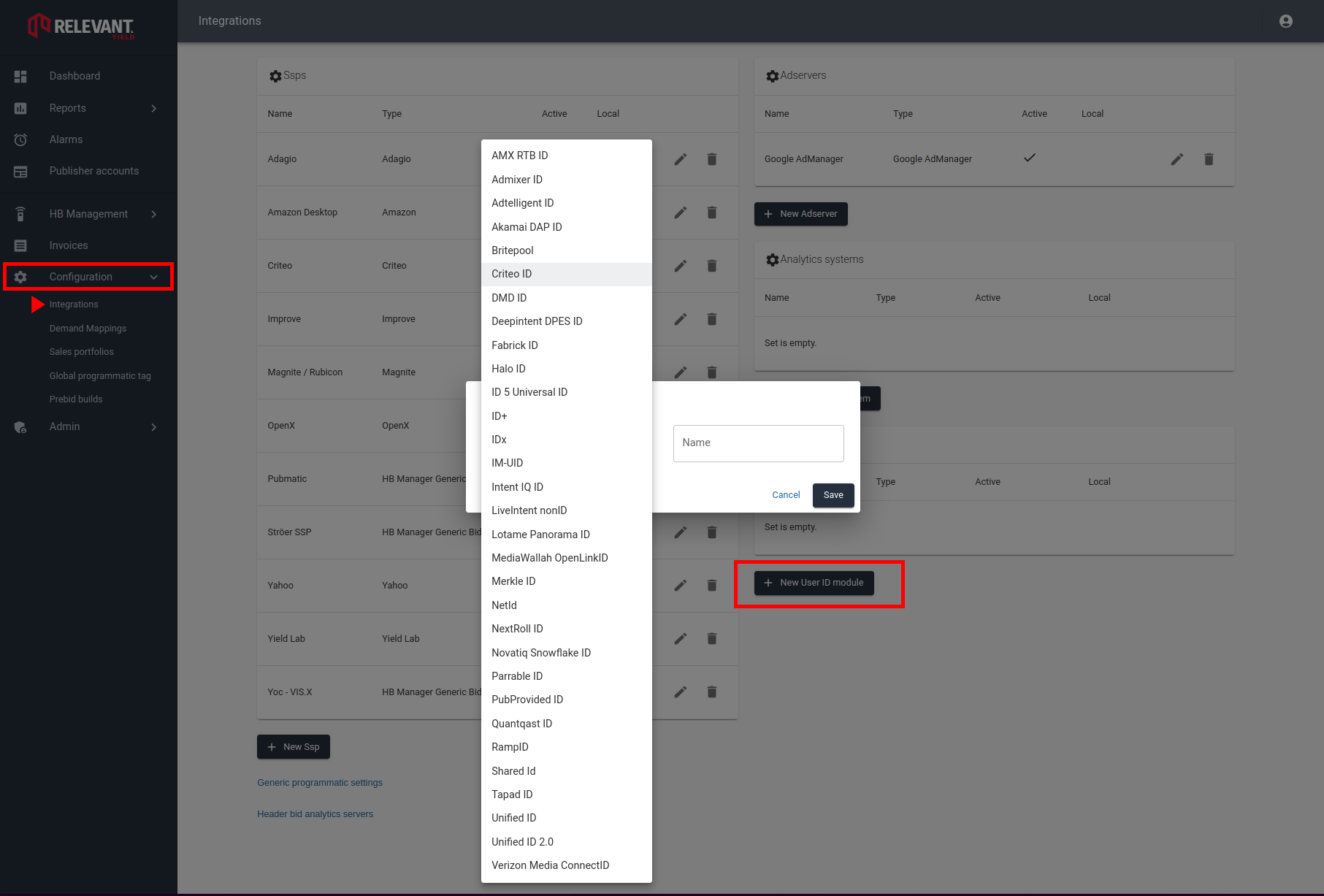
Simply Select which ones you want to work with by moving to Global Settings - Programmatic Configurations, and press "Add a new User ID module". This will bring up a list of the different ID Vendors you can work with.
Step 1: Adding a New User ID Vendor (Integration)
The first step is adding the desired identity vendor to your Prebid.js build within Relevant Yield.
-
Go to:
Configuration>Integrations>+ New User Id Module
When adding a vendor, you may need to provide credentials:
-
Action Required: Check the official Prebid documentation for the selected vendor. Some require a specific Partner ID or URL obtained directly from the vendor.
-
Purpose: This process integrates the selected identity vendor's code (or "sub-module") into the Prebid.js wrapper managed by Relevant Yield.
Credentials Note: When selecting a vendor, check the official Prebid documentation to see if you need to provide specific credentials (e.g., a Partner ID or custom URL) obtained directly from the vendor.
Step 2: Enabling and Configuring the Module
Once integrated, you must activate the module and define its rules for storage and refreshing at the desired level (Global or Site).
Go to: HB Management > Global HB Management (or Site) > Prebid parameters > User ID Modules
-
Select Module: Open the User ID Modules settings.
-
Enable: Use the toggle button to Enable the module.
-
Configure: Fill in any required vendor-specific credentials and adjust the Storage Settings.
-png.png)
3. Configuration Parameters Details
The storage settings define how the collected user ID interacts with the user's browser. Configure these parameters carefully based on your desired data freshness and user persistence.
| Setting Area | Description | Prebid.js Equivalent |
| Required & Optional Fields | Any necessary credentials (like a partner ID or key) specific to the identity vendor. | modules[].params |
| Storage: Type | Defines how the ID is stored on the user's browser (e.g., Local Storage or Cookie). | storage.type |
| Storage: Storage Time (days) | How long the generated ID should remain valid and persistent on the user's browser. | storage.expires |
| Storage: Time before refresh (seconds) | How often the module should check and potentially generate a new ID to ensure freshness. | storage.refreshInSeconds |
Remember: Once configured, save your settings. Your User ID is active instantly across the selected traffic scope.
4. External Reference
For the most up-to-date technical requirements and credential details for all available User ID sub-modules, consult the official Prebid.org documentation:
-
Prebid.org: User ID Sub-Modules Reference https://docs.prebid.org/dev-docs/modules/userId.html#user-id-sub-modules