![Relevant_yield_logo.png]](https://help.relevant-digital.com/hs-fs/hubfs/Logos/Relevant_yield_logo.png?height=50&name=Relevant_yield_logo.png)
Setting up the Slack integration
Before it can be used, a Relevant Yield Admin user with sufficient Slack permissions needs to create a Slack app and input its details to the Relevant Yield platform.
To create it, head to Configuration > Integrations, and under Automation systems edit the Slack Integration.
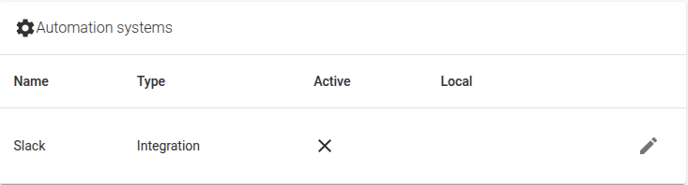
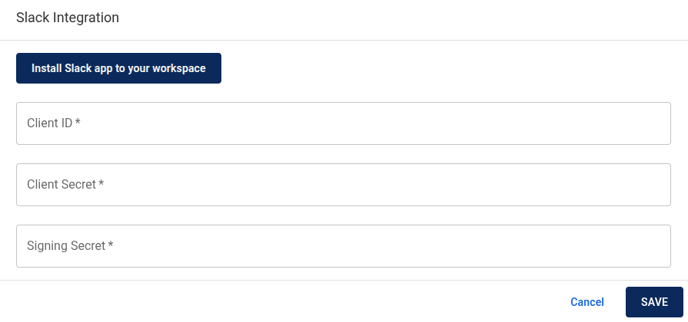
In the pop-up, you need to press the "Install Slack app to your workspace" button, which will use a template provided by us and information specific to your Relevant Yield instance to create a new Slack app.
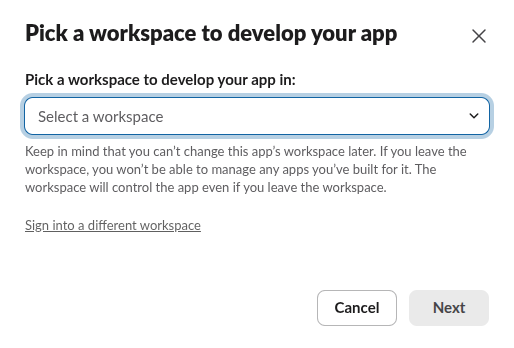
This button will take you to a Slack page to create your app. If you are logged into multiple Slack workspaces, you may first need to choose a workspace for your app to live in.
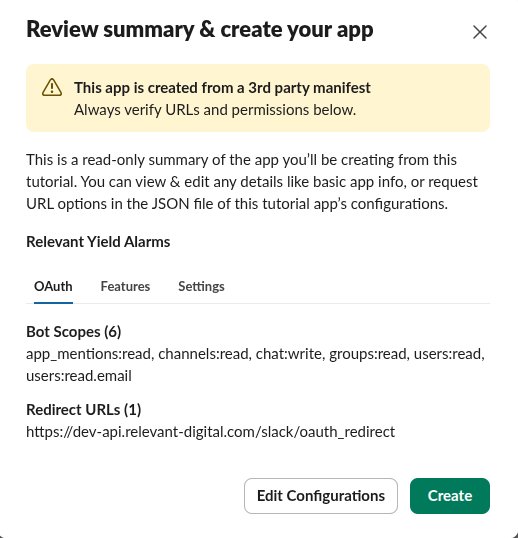
 In this app creation page, you can also review the permissions of the app, which are used to browse the users and channels in a workspace, send messages from the Relevant Yield platform and send information back, for example to acknowledge alarms. The Redirect URL will be different for your installation. When ready, click the "Create" button.
Once the app is created on Slack, there are three additional steps we need to take within the Slack app page.
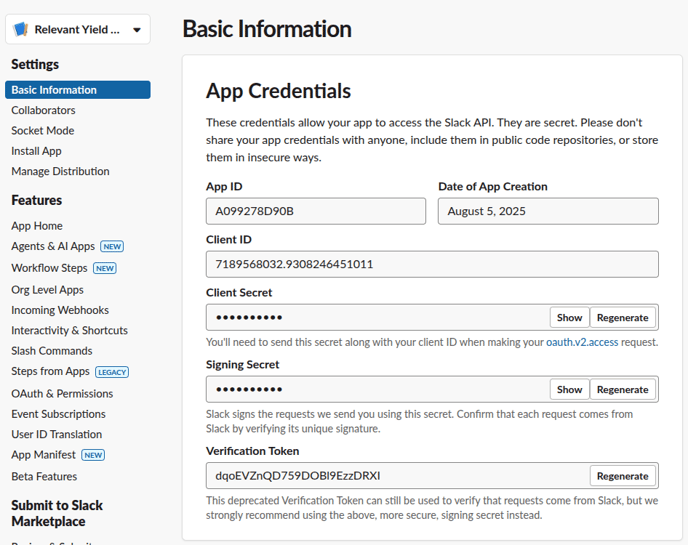
First, under Basic Information, copy the Client ID along with the Client and Signing secrets to the integration settings on the Relevant Yield platform, below the "Install Slack app to your workspace" button. If you desire, in the same Slack page, you can also change the appearance of the app in your workspace under Display Information.
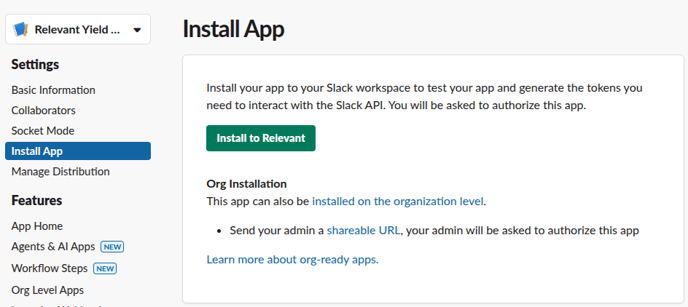
Second, install the created app to your workspace by navigating to Install App and pressing the "Install to [workspace]" button.
Lastly, as an optional step, you can enable the sharing of your app with other workspaces, which will let your users use your Slack app in their own workspaces. Doing so will not submit your app to the Slack marketplace and every user will need to go through your Relevant Yield platform to install it independent of their workspace. To enable the sharing, navigate to Manage Distribution > Share Your App with Other Workspaces. Confirm the "Remove Hard Coded Information" section and press the "Activate Public Distribution" button.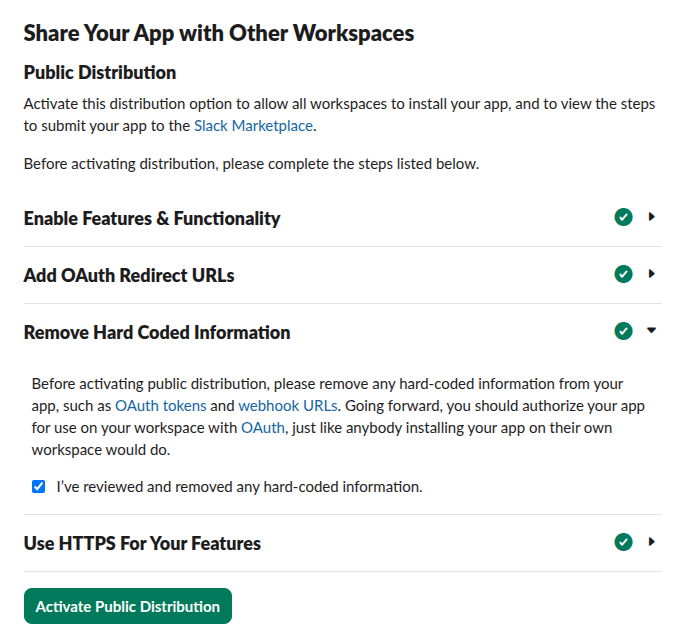
With these steps completed, your Slack app is ready for use!
Updating the Slack integration
Since the Slack app lives in your workspace, updating the app to enable the newest features requires following a short procedure. If an update is available, the Slack integration pop-up will have an additional button to download the updated Slack app manifest.
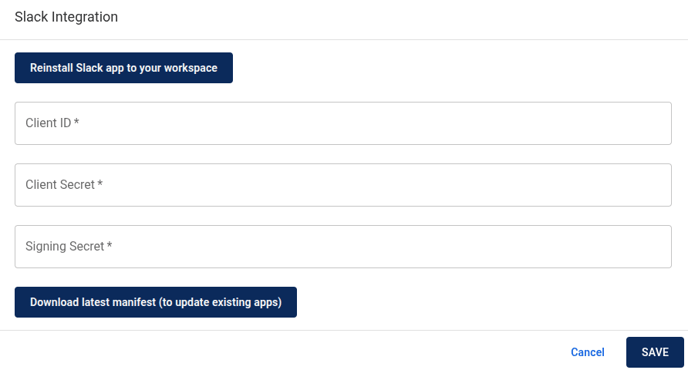
With the manifest downloaded, head to your Slack app's settings and navigate to the App Manifest section. On this page, you can paste the updated manifest and save changes, your app will then be ready to use the latest features.
Receiving notifications in Slack
Currently, the Slack integration allows you to receive alarm notifications and acknowledge them from Slack. For more information about the alarms feature in general, take a look at the alarms pages for Ad Revenue Insights and Header Bidding Analytics.
If you have any feature requests to expand this integration, please don't hesitate to get in touch!
If the Slack integration is enabled, users will have an additional button when editing alarm recipients. Users can press the "Connect to a Slack workspace" button to establish a connection between their user and Slack workspace. Note that unless public distribution was enabled during setup, users will need to be logged-in to the workspace of the Slack app.
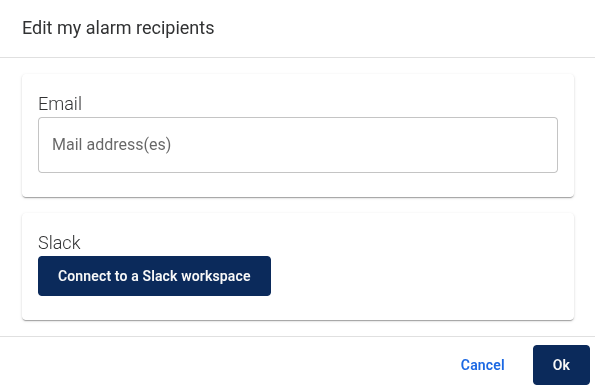
Allowing access in the opened page (after choosing the right workspace if necessary), will change the edit recipient pop-up to allow selecting Slack channels or users. Users can also use the trash icon to clear their selection.
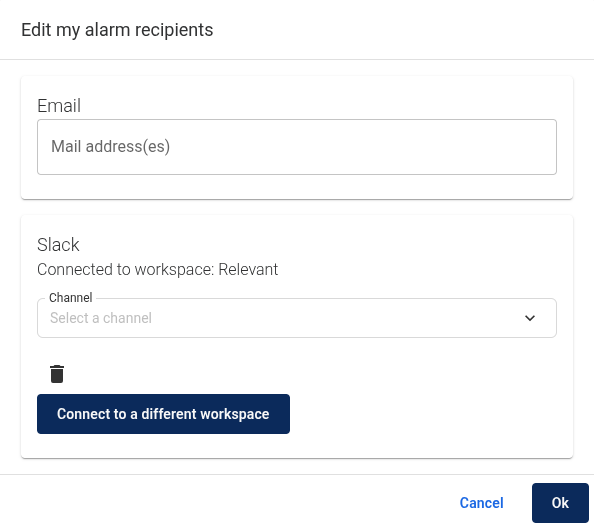 With a recipient selected, you are ready to receive your alarm notifications on Slack.
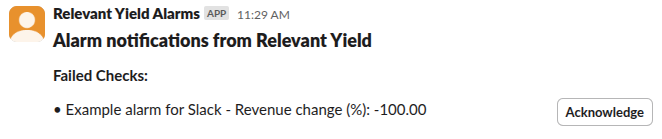
To receive alarms in channels instead of direct messages, you will need to add the bot user to the channel. Try sending "@Relevant Yield Bot" (or the correct name if you changed it) within the channel and Slack will ask you if you'd like to add the bot to the channel.
Global alarm recipients
Global alarm recipients is a single setting that can be edited by all admin users, this includes its Slack integration. It requires a separate Slack connection, which will then be visible to all admin users.